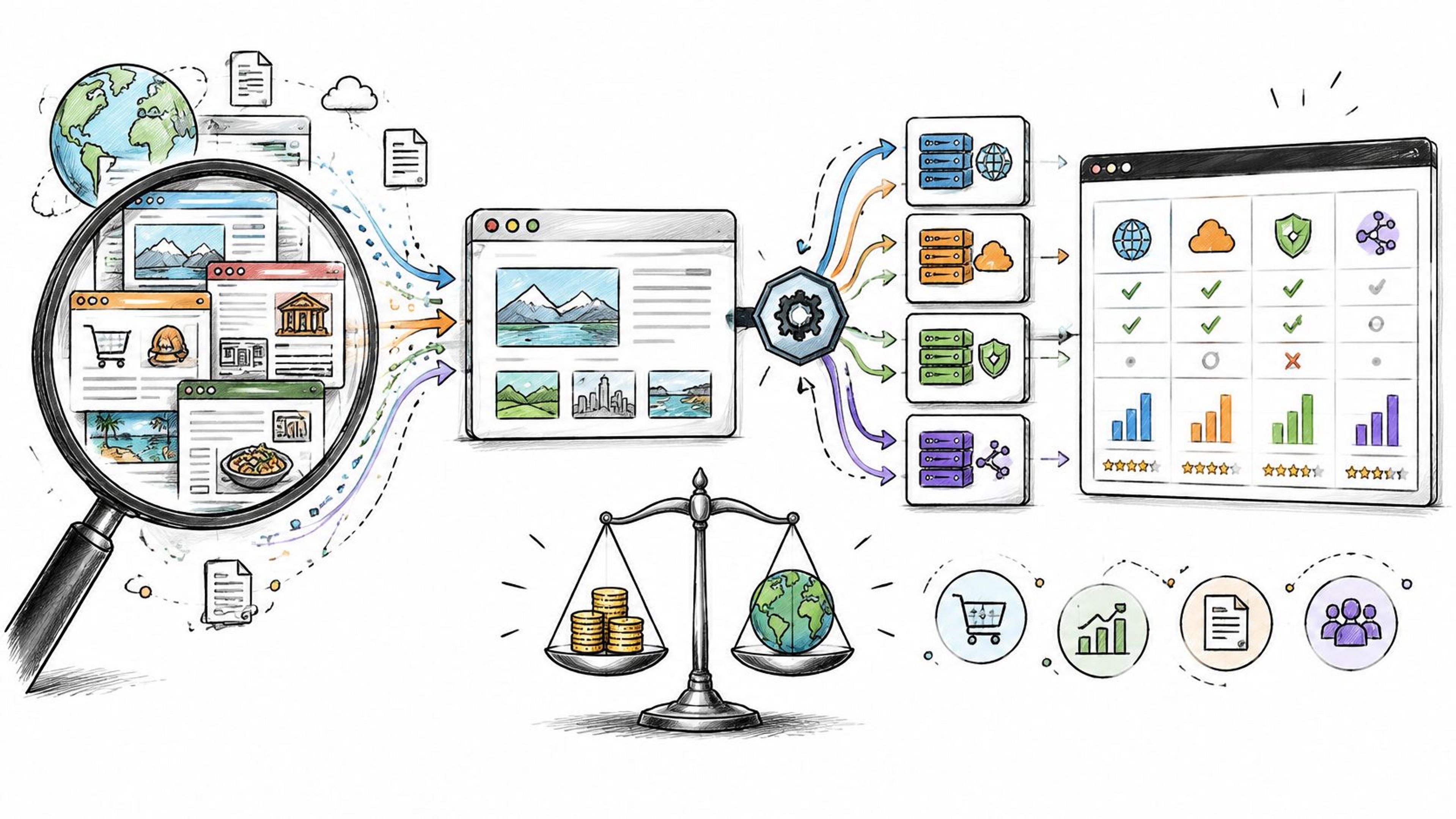
Most “best AI prototyping tools” lists skip the trade-offs. They repeat feature pages and recommend whichever app produces the most impressive first screen. That's poor advice if you'll eventually need to edit the result, hand it to a developer, or connect it to customer data.
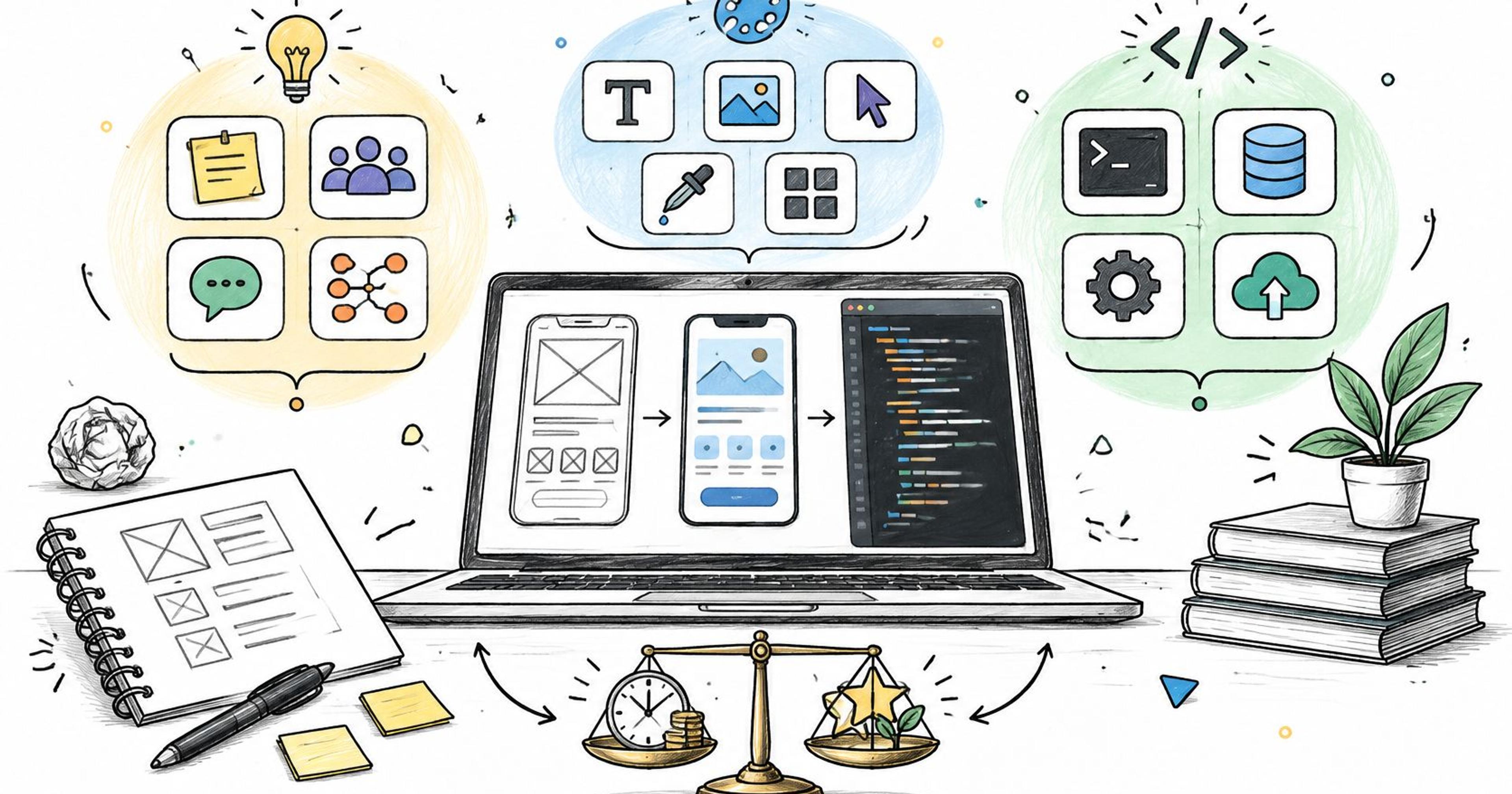
Choose the workflow stage before you choose the tool. Sketching an onboarding flow, validating a design-system change, and building a working web app require different outputs. A clickable mockup doesn't need a database. A functioning login screen needs much more scrutiny than a convincing animation.
Adoption doesn't remove that distinction. The Stack Overflow 2025 Developer Survey found that 84% of respondents used or planned to use AI tools in their development process, while 46% distrusted AI-tool accuracy. You can use these tools extensively without treating their output as finished work.
The practical differences are editability, credit consumption, portability, and review overhead. Can you correct a screen manually, or must you pay for another generation? Can a developer continue the project outside the platform? Does the prototype simulate permissions, or enforce them?
For indie makers, there's another handoff after development: discovery. Better Launch is a launch platform for indie founders who need their finished products seen by builders and early adopters. First, though, choose a tool that produces the artifact you need.
#Table of Contents
- 1. Figr
- 2. Figma Make
- 3. Lovable
- 4. v0
- 5. Bolt
- 6. Replit
- 7. Uizard
- 8. Visily
- 9. Relume
- 10. UX Pilot
- 11. UXPin
- AI prototyping tools at a glance
- Pick One Tool, Ship the Prototype, Then Get It Seen
#1. Figr
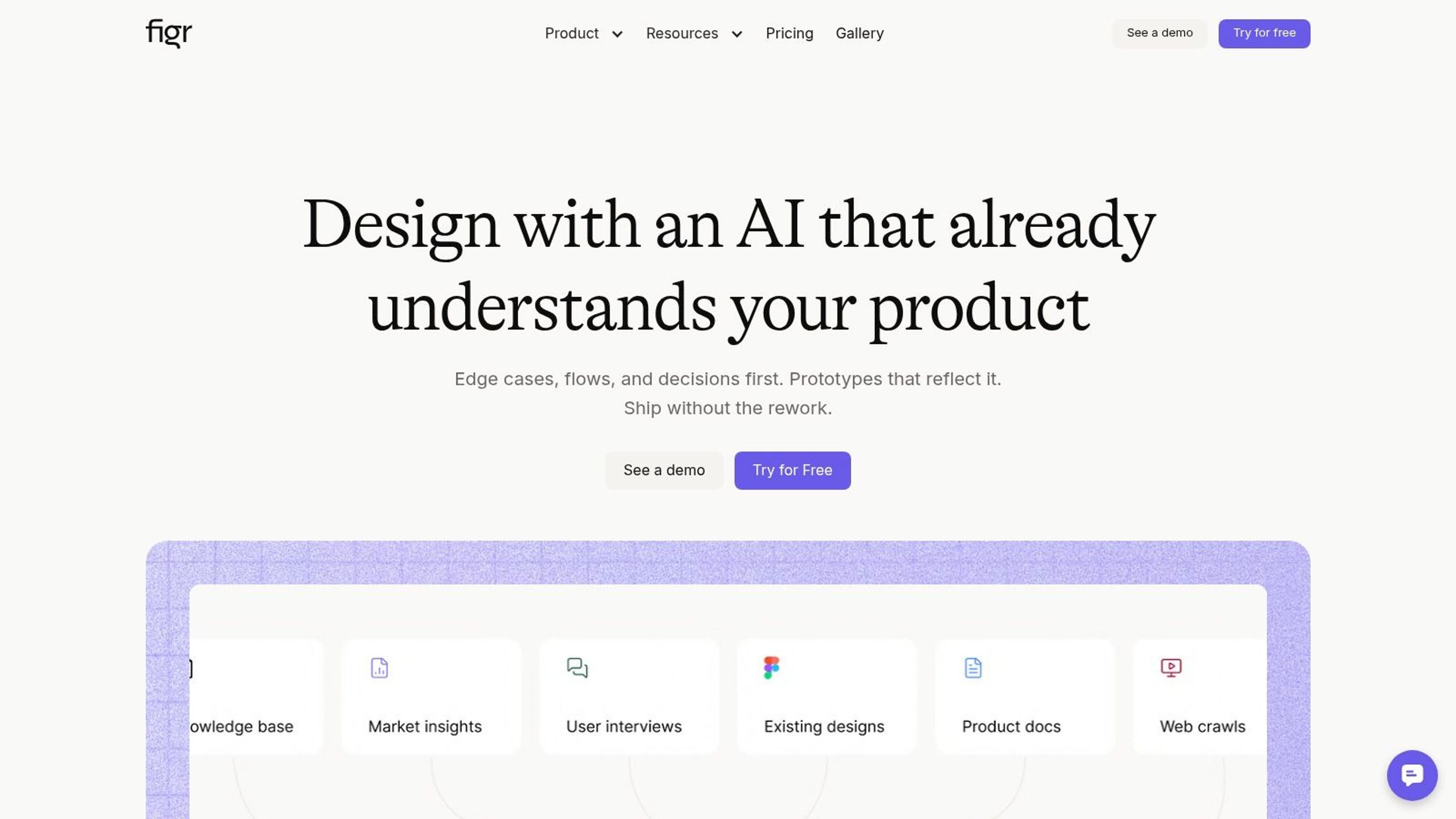
Workflow stage: product-context exploration and design handoff.
Figr is most interesting when you already have a product, not just an idea. The Ai prototyping tool uses live-app capture, imported Figma design systems, and remembered product decisions to generate work grounded in an existing interface.
That changes the starting point. Instead of asking for a generic subscription dashboard, you can explore how a subscription change should fit your navigation, components, terminology, and established user flows.
#Where product context helps
Figr supports more than screen generation. Its workflow includes PRDs, user flows, edge cases, UX reviews, test cases, and high-fidelity prototypes, with Figma export for continued design work. Accessibility checks and design-token enforcement are useful when you're trying to prevent a plausible-looking concept from drifting away from your actual product.
Say you're adding team invitations. Ask for the invitation flow, but also expired invitations, duplicate accounts, insufficient permissions, and the QA cases needed to validate those states. That's a more useful evaluation than judging the default screen alone.
- Choose it for: Product teams extending an existing application and needing rationale, flows, and handoff artifacts alongside screens.
- Skip it for: A disposable landing-page sketch where capturing product context would add unnecessary setup.
- Verify before committing: Whether captured screens, imported tokens, and exported components remain editable and accurate in your own files.
Treat analytics-informed recommendations as hypotheses to investigate, not automatic design decisions. Likewise, generated accessibility checks and QA cases help reviewers focus their work, but they don't establish production readiness. Test export quality and account usage limits with a representative feature before moving a wider workflow into Figr.
#2. Figma Make
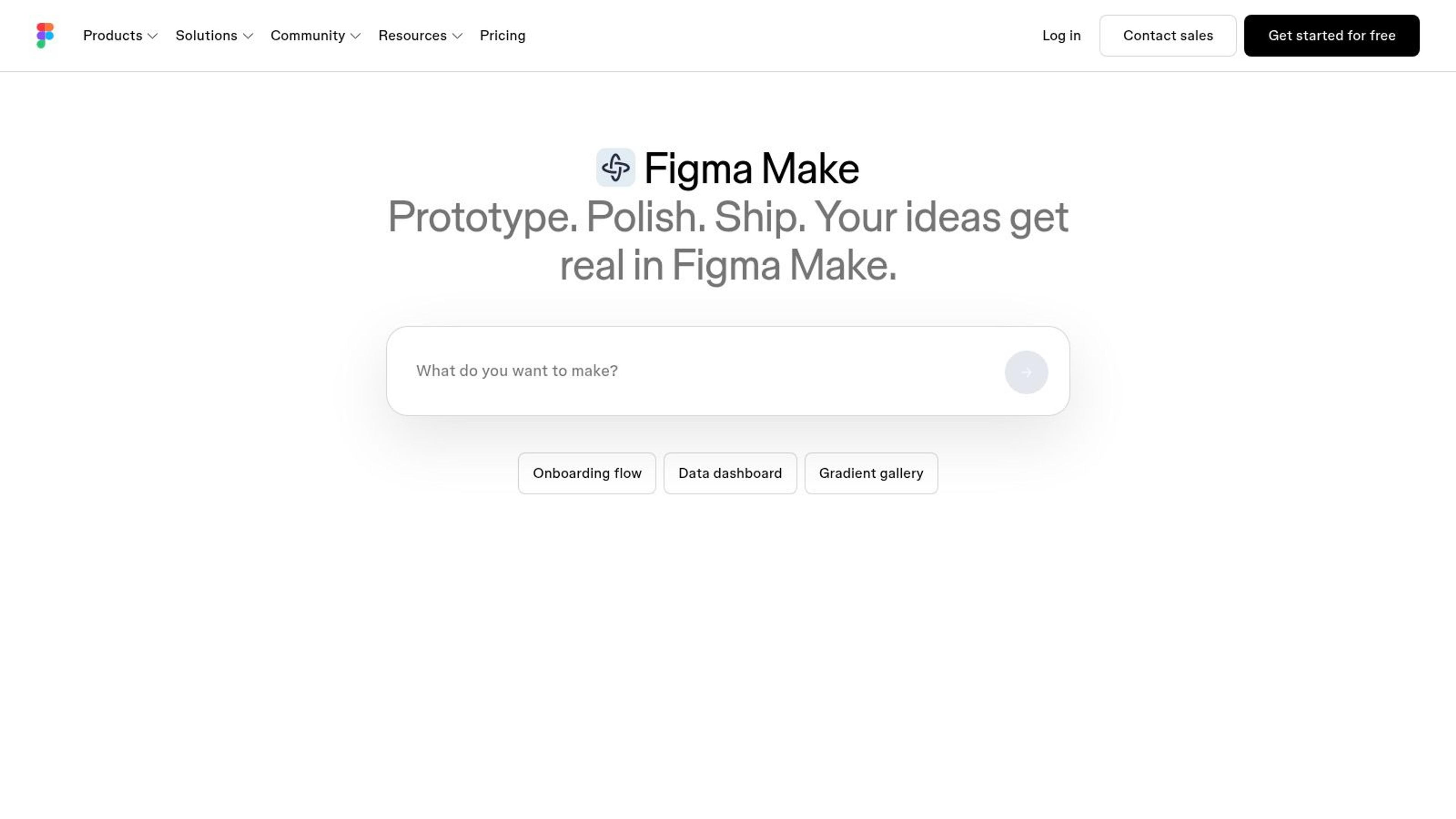
Workflow stage: interactive design exploration and handoff.
Already working in Figma? Figma Make is a sensible place to test whether an existing design communicates its intended behavior. It can generate interactive prototypes and web apps from prompts or design inputs, with visual editing and shareable publishing.
Its advantage is proximity to your design workflow, not a promise of automatic production software. You can explore an interaction, gather feedback, and move supported parts of the result into Figma Design without treating every generated artifact as a finished component.
Practical rule: Test the return journey into your design files before committing to the generation workflow.
For example, prototype a settings panel with validation and a saved state. Then inspect what remains editable, whether typography and spacing follow your system, and how easily another designer can revise the result.
Choose it when designers and product managers need an interactive concept within an established Figma workflow. Skip it if your primary requirement is a maintainable application repository rather than design exploration.
Plan-based AI credits constrain iteration, and backend connections such as Supabase introduce technical review requirements. Browse our design tools category if you're comparing alternatives, but prioritize the handoff artifact over the polish of the preview.
#3. Lovable
Workflow stage: working web prototypes.
A founder with a PRD often needs something stakeholders can use, not another document. Lovable turns natural-language instructions and product context into interactive web applications, with prompt-based refinement, visual editing, backend integrations, and GitHub synchronization.
The useful distinction is code continuation. You can use a prototype to validate a workflow, then give developers a repository to inspect rather than asking them to reconstruct behavior from screenshots.
#Build a narrow vertical slice
Start with a complete task, such as creating a project and seeing it appear in a list. Specify required fields, validation, empty states, and who can access the record before asking for additional screens.
- Choose it for: Founders and product managers who want a working web concept and a path to developer handoff.
- Skip it for: Native mobile prototypes or projects where nobody can review generated application logic.
- Watch the credits: Broad redesign requests and repeated debugging can consume usage without improving the core product hypothesis.
Connecting Supabase doesn't establish correct permissions. Have a developer inspect authentication, authorization, data access, and secret handling before introducing real customer information.
Our AI tools category can help you compare adjacent options. For Lovable specifically, test GitHub handoff early, including whether someone else can run and modify the project.
#4. v0
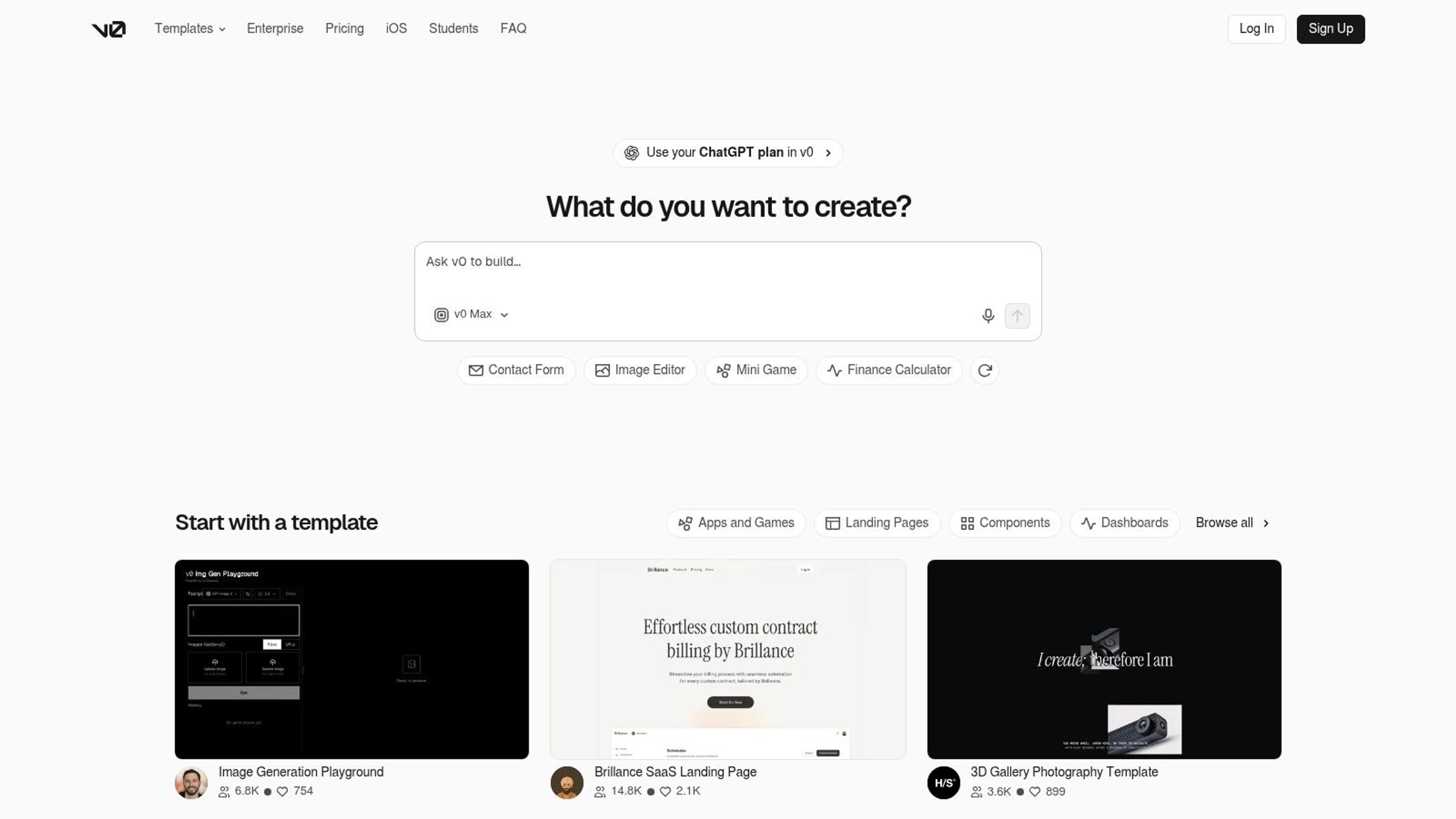
Workflow stage: code-based interface exploration.
v0 fits teams that want to inspect and adapt web code while exploring the interface. Prompts, screenshots, mockups, and Figma designs can provide starting material; GitHub connections and Vercel deployment support continued development.
For a SaaS dashboard, that's a practical combination. Generate the layout, inspect its components, and refine the behavior rather than treating the rendered preview as the only deliverable.
#Inspect beyond the happy path
Design Mode supports visual changes, but appearance is only part of the evaluation. Ask what happens when a table is empty, a request fails, a label becomes longer, or the user moves through the interface with a keyboard.
Choose v0 when a developer will own the resulting web application and wants AI assistance with interface scaffolding. Skip it when you only need a lightweight clickable mockup or a native mobile interaction study.
Credit-based usage makes open-ended experimentation harder to budget. Keep a clear brief, preserve working versions, and separate cosmetic changes from behavior changes so you can identify regressions.
Before deployment, review dependencies, server-side boundaries, data handling, and generated business logic. Deployable code isn't the same as reviewed code, even when the hosting workflow makes publication convenient.
#5. Bolt
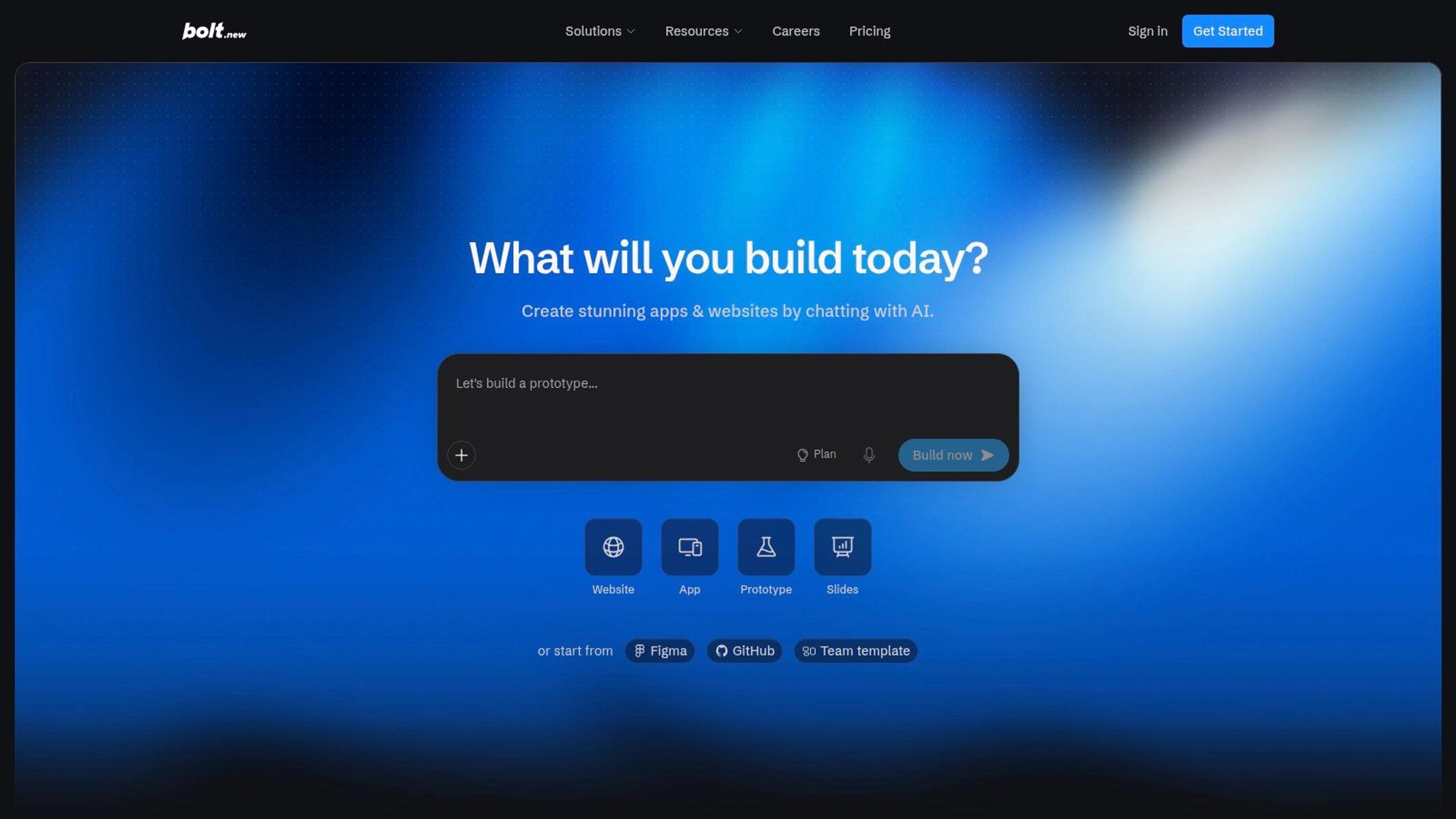
Workflow stage: browser-based runnable prototypes.
Bolt combines prompt-driven generation with an in-browser development environment, previewing, hosting, and database options. It's useful when local setup would distract from testing the idea.
Say you're validating a client intake tool. A runnable form and results view can reveal missing fields and confusing terminology more effectively than a static presentation, provided you use synthetic information during early testing.
A live URL proves that people can open the prototype. It doesn't prove that the application protects their data.
The main trade-off is token consumption during iteration. Project size and repeated changes affect usage, so an initially simple experiment can become less predictable as the application grows.
- Choose it for: Makers who need a shareable web experience without assembling a local development environment.
- Skip it for: Teams seeking only visual UX mockups, with no need for executable behavior.
- Keep costs controlled: Describe changes precisely, preserve a working baseline, and avoid bundling unrelated fixes into a broad regeneration request.
Review project visibility before adding proprietary material. Before moving beyond a demo, inspect generated code, database permissions, deployment configuration, and recovery options. Hosting convenience should reduce setup work, not replace an explicit release decision.
#6. Replit
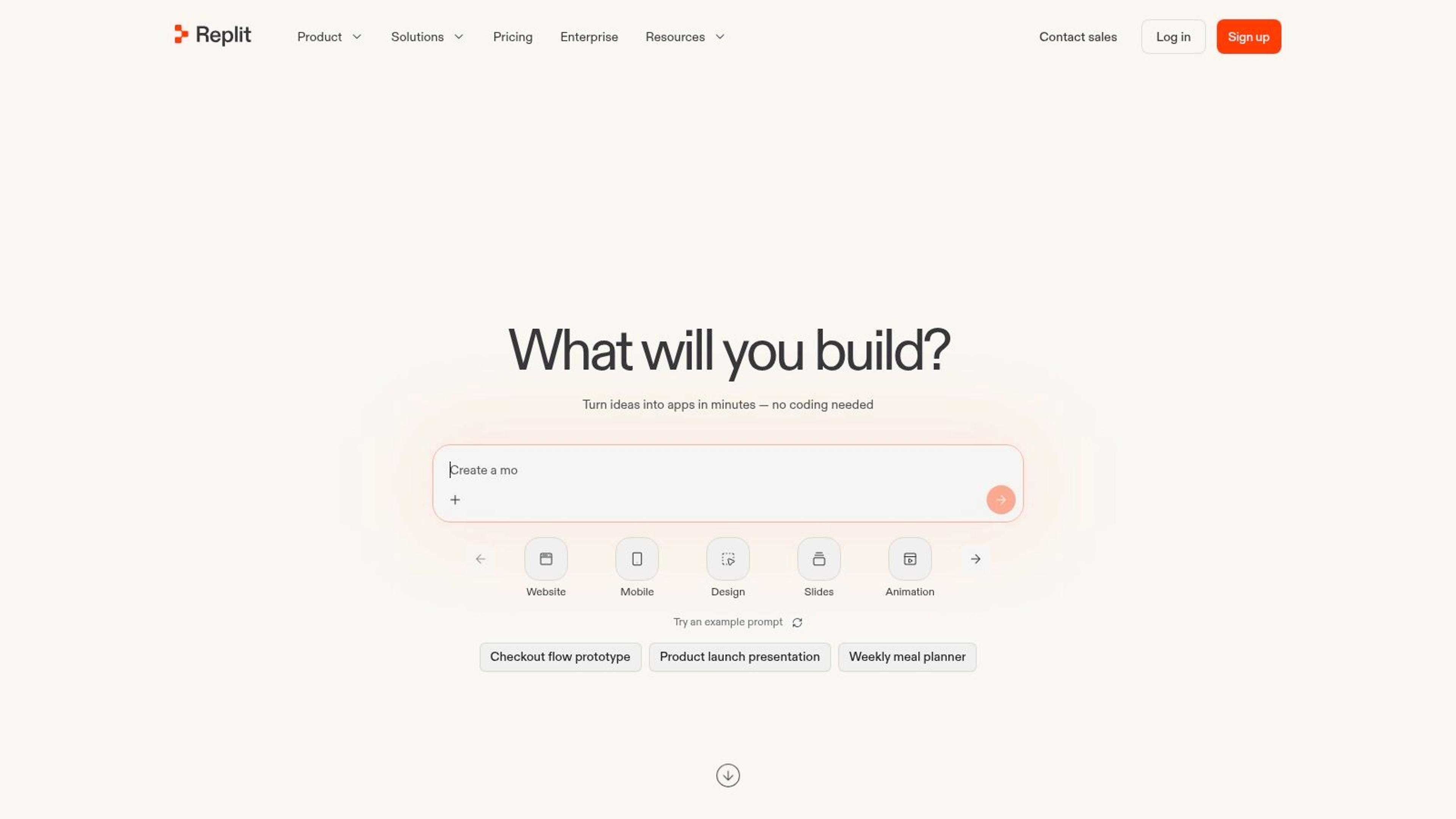
Workflow stage: development-oriented application prototyping.
Replit makes sense when the prototype may become an ongoing software project. Its browser-based workspace combines an AI agent, code editing, application execution, databases, collaboration, and deployment workflows.
Compared with a dedicated screen generator, it asks you to think more like a developer. That's helpful when the question is whether an integration works, but less helpful when you're comparing navigation layouts.
#Evaluate the maintenance workflow
Don't stop after the agent generates a running application. Read the project structure, locate environment variables, run the available tests, and make a small manual change to understand how the system fits together.
Choose Replit if you want AI generation alongside hands-on development and expect to inspect logs or modify code. Skip it if your collaborators only need editable screens and would find a development workspace distracting.
Costs depend on the plan and activity, so distinguish AI work from ongoing application operation when estimating the budget. Include database and deployment needs rather than treating initial generation as the entire expense.
Give the agent bounded tasks with observable acceptance criteria. A request to correct a validation rule is easier to verify than a request to improve the whole app, particularly when several parts already work.
#7. Uizard
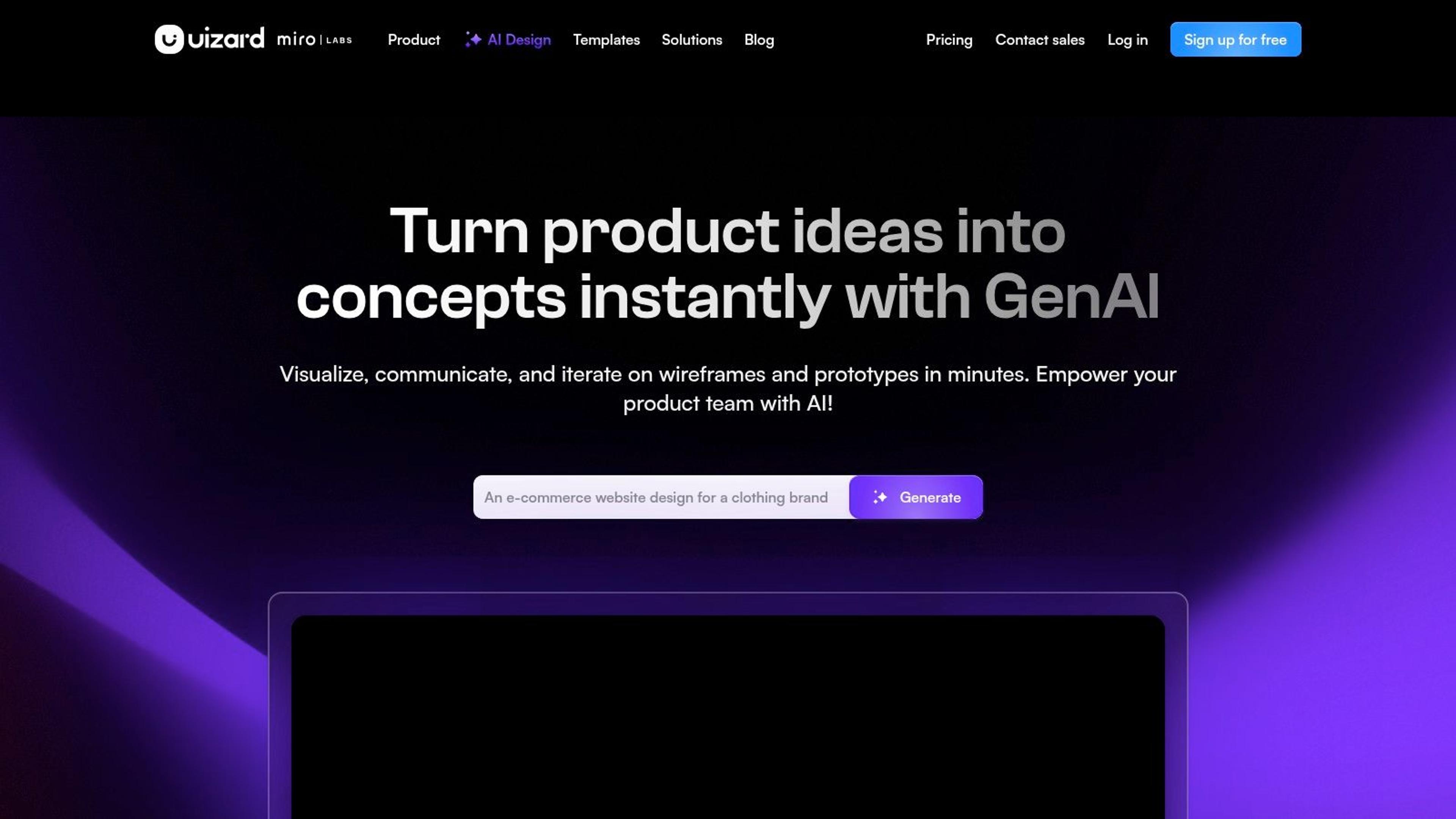
Workflow stage: early idea sketching.
Not every prototype needs executable code. Uizard is a better starting point when you need to turn a prompt, screenshot, wireframe, or sketch into editable screens and a clickable concept.
That makes it approachable for founders, operations staff, and other contributors who don't work in a design tool daily. They can express a workflow visually without first deciding how its backend should work.
- Choose it for: Early product conversations, rough onboarding flows, and stakeholder feedback on screen structure.
- Skip it for: Validating database behavior, integrations, or production application architecture.
- Check the plan boundaries: AI generation is limited on free access, while broader generation and developer handoff capabilities require paid access.
Use recognizable content instead of generic dashboard filler. For an appointment-booking concept, include unavailable dates, cancellation messaging, and a confirmation screen so reviewers can assess the actual task.
Clickable doesn't mean functional. A linked confirmation screen can help test comprehension, but it can't demonstrate that an appointment was stored or that duplicate bookings are prevented.
Keep the fidelity appropriate to the decision. If you're still deciding which steps belong in the flow, refining shadows and decorative illustrations won't resolve the important uncertainty.
#8. Visily
Workflow stage: collaborative sketches and editable UI concepts.
Visily suits cross-functional teams that need a shared canvas for wireframes, mockups, diagrams, and prototypes. Text, screenshots, and diagrams provide different ways to begin, which helps when teammates bring uneven source material.
A founder might arrive with a competitor screenshot while an engineer brings a process diagram. The useful exercise is translating those inputs into a coherent user flow, not reproducing the screenshot's visual styling.
#Test the handoff, not just the canvas
Visily supports AI instructions and visual editing, with Figma import and export and code-oriented handoff features on paid plans. Those boundaries matter if the person sketching the concept isn't the person completing the design.
Choose it for collaborative early-stage exploration, especially when non-designers need to contribute. Skip it when your immediate goal is a deployed application with real backend behavior.
AI credits vary by plan, so use direct editing for straightforward changes rather than regenerating an entire screen. Before upgrading, export a representative design and inspect its structure in the destination workflow.
A separate builder or development environment may still be necessary. Budget for that transition, including the work of translating visual states into actual application behavior, rather than assuming design export completes the implementation.
#9. Relume
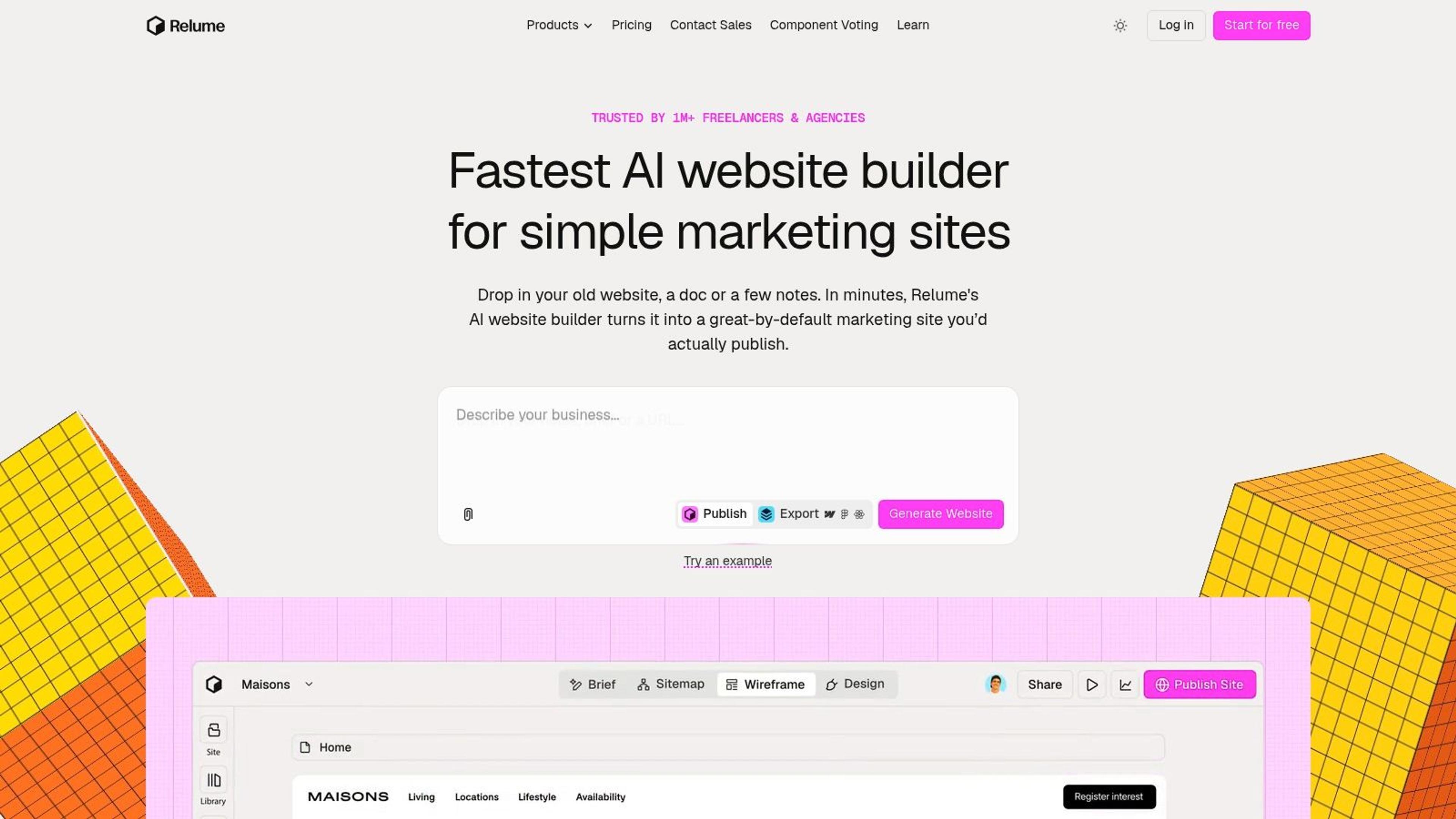
Workflow stage: website structure and wireframing.
Relume answers a narrower question than most AI prototyping tools: what pages and sections should this website contain? It generates website briefs, sitemaps, and wireframes, with paths into Figma and Webflow.
That specialization is useful for a product launch site. You can organize the relationship between the homepage, use cases, product explanation, and conversion pages before investing in detailed visual design.
Decide what visitors need to understand before asking AI to decorate the page.
Choose Relume when information architecture and website planning are the main tasks. Skip it for backend-heavy applications, complex permissions, or detailed interaction validation.
Use the generated sitemap as a proposal. Remove pages that repeat the same message, identify where visitors need proof, and give each page a clear next action before exporting.
Plan-dependent AI usage and publishing features deserve attention, but the larger risk is approving a generic structure because it looks complete. A convincing wireframe can still omit migration concerns, integration requirements, or the explanation that differentiates your product.
For an indie maker, Relume can support the marketing site while a separate tool handles the application prototype. You don't need both artifacts to come from the same platform.
#10. UX Pilot
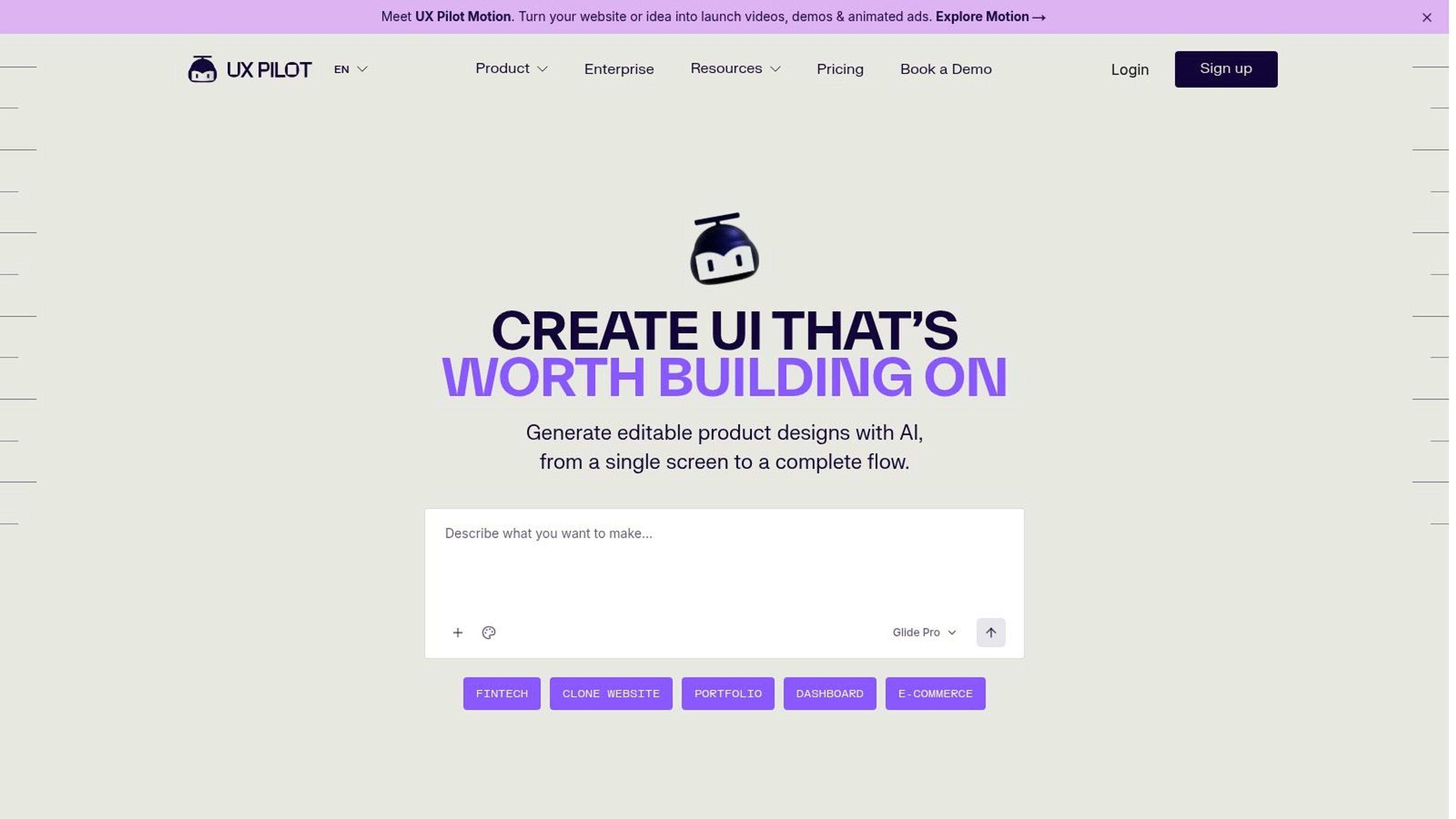
Workflow stage: UX screen exploration and Figma handoff.
UX Pilot sits in the exploration stage: it generates UX screens and prototypes you then refine in Figma, rather than hosting a working application. That makes it a fit for product teams comparing interface directions before committing to one.
Judge it by whether the generated screens hold up against your requirements and stay useful after export. A polished first draft is cheap. The cost shows up when the design meets real content.
#Evaluate a difficult screen
Pick a screen with genuine constraints: a permissions editor, a long settings form, a table with mixed states. Check hierarchy, error placement, component consistency, and whether the layout survives realistic data like long names, empty states, and validation failures.
- Choose it for: Designers and founders exploring UX directions before refining them in an established Figma workflow.
- Skip it for: Makers who need a working backend or expect the prototype itself to become the deployed application.
- Check access requirements: Credits constrain generation, and Figma export plus some integrations sit behind paid plans.
Tools in this stage, including UI Discovery, face the same test: generated output either meets your acceptance criteria or it gets regenerated.
Keep product requirements beside the generated screens. A visually consistent flow can still omit recovery states, permission restrictions, or the explanation a first-time user needs. Use AI to propose the interface, then review every decision that affects whether someone can finish the task.
#11. UXPin
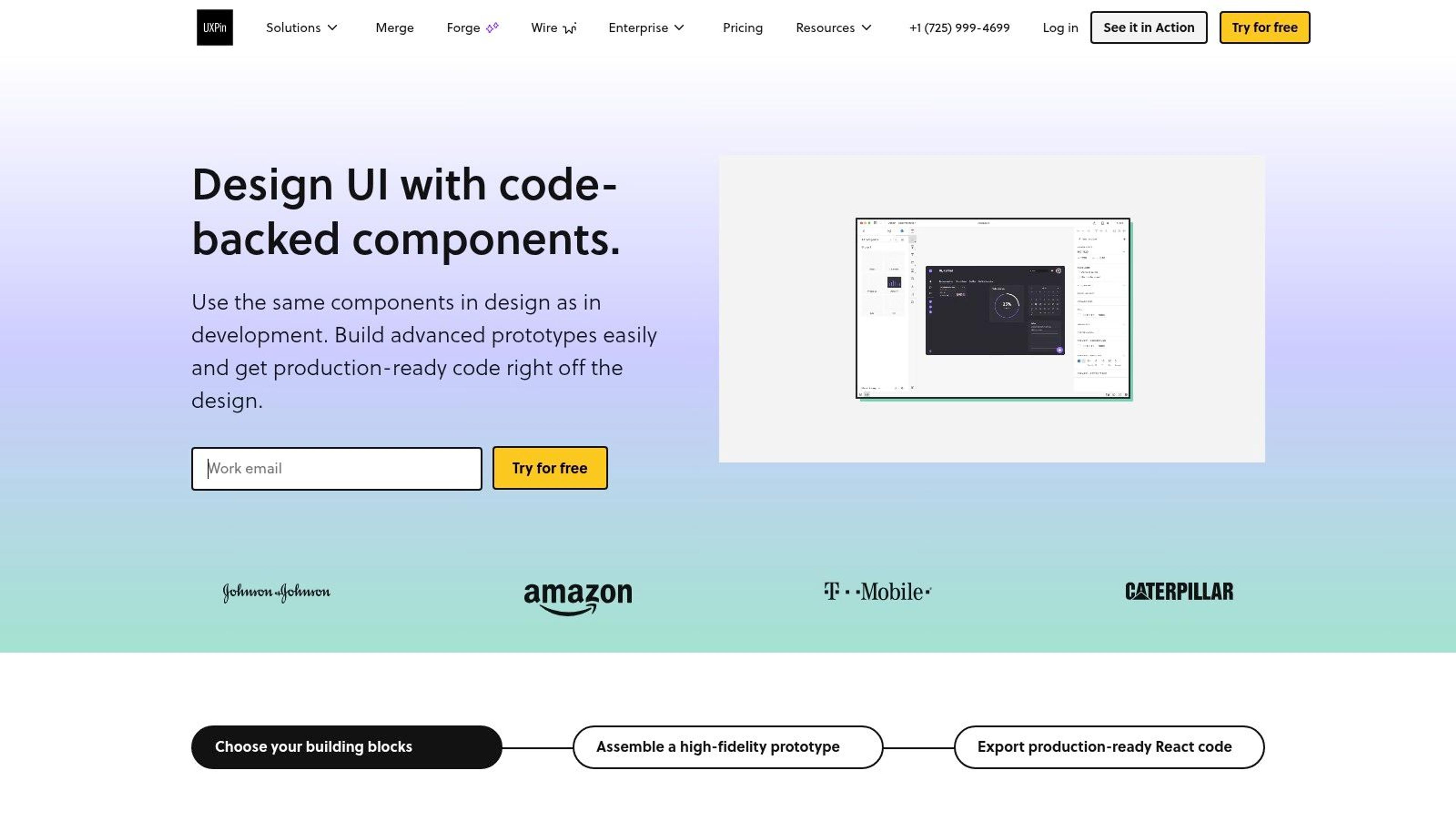
Workflow stage: realistic interaction testing and component-based handoff.
UXPin is the stronger fit when prototype behavior and component consistency matter more than effortless first-screen generation. Its code-based approach, including Merge, lets teams prototype with coded UI components.
Conditional logic, variables, and expressions support interactions that static screen linking struggles to represent clearly. AI-generated layouts are useful here, but the component and behavior workflow is the more consequential distinction.
#Bring implementation constraints into the prototype
Consider a form with conditional fields and several validation states. Using the product's components can help designers evaluate behavior without inventing controls that developers must later reinterpret.
Choose UXPin for teams with a component library and a need for realistic interaction testing. Skip it for disposable sketches, simple landing-page concepts, or teams unwilling to handle component setup.
Evaluate the plan requirements for design-system workflows and Storybook integration before committing. Also separate component fidelity from application completeness: a real button component doesn't establish correct business rules or backend security.
The setup only pays off if the team will reuse it. For an isolated concept, lighter tools are easier to justify; for recurring work against an established library, alignment with real components can be more valuable than generating another visually polished approximation.
#AI prototyping tools at a glance
Scan this table by workflow stage, not alphabetically. The first group turns a rough idea into screens, the second keeps work close to an existing design system, and the third produces code you can run.
| Workflow stage | Best for | Output type | Figma integration | Free tier or trial |
|---|---|---|---|---|
| Idea sketching | Uizard, non-designers creating early UI concepts | Editable screens and clickable mockups | Standalone editor, no native Figma path | Free tier with 3 AI generations per month |
| Idea sketching | Visily, cross-functional teams exploring UI ideas | Editable UI screens, diagrams, and prototypes | Figma import and export on paid plans | Free plan available |
| Idea sketching | Relume, teams planning website structure and wireframes | Website briefs, sitemaps, and wireframes | Exports to Figma | Limited free plan |
| Idea sketching | UX Pilot, teams generating UX screens and flows for further design work | UI screens and prototypes | Figma export on paid plans | Free access available |
| Design handoff | Figr, product teams creating context-aware UX artifacts | PRDs, flows, test cases, reviews, and high-fidelity prototypes | Imports design systems and tokens; one-click export | Free tier for initial evaluation |
| Design handoff | Figma Make, teams exploring ideas within a Figma workflow | Interactive prototypes and web apps | Native Figma workflow; results can be partly moved into Figma Design | Plan-based AI credits |
| Design handoff | UXPin, teams needing realistic prototypes based on coded components | Interactive prototypes using coded UI components | Merge pulls in coded components rather than Figma frames | 14-day free trial |
| Working code | Lovable, founders and product managers turning briefs into web concepts | Interactive web prototypes and code | Code-first output, no native Figma workflow | Free tier limited by credits |
| Working code | v0, teams prototyping web interfaces as adaptable code | Web UI and application code | Generates from Figma designs | Credit-based free access |
| Working code | Bolt, quickly building and sharing runnable web projects | Web apps with preview and hosting | Code-first output, no native Figma workflow | Free tier limited by tokens |
| Working code | Replit, users prototyping while working directly with code | Runnable applications in a coding workspace | Code-first workspace, no native Figma workflow | Free tier available; agent usage is metered |
Two caveats apply across every row. Free access is metered in credits, generations, or days, so heavy regeneration during exploration burns through the allowance faster than the marketing implies. And the working-code group still ships drafts: plan review time for authentication, secrets handling, and error states before anything touches real data.
#Pick One Tool, Ship the Prototype, Then Get It Seen
Match the tool to the uncertainty you need to resolve. Choose Uizard or Visily when you're deciding what screens belong in a flow. Consider Figr for existing-product context, Relume for website structure, and UX Pilot for screen exploration that continues in Figma.
Figma Make and UXPin suit different design-handoff needs. Make is useful for interactive exploration near an existing Figma workflow; UXPin deserves consideration when coded components and realistic behavior are central. Lovable, v0, Bolt, and Replit make more sense when you need working web code.
#Define the review boundary
Treat every output as a draft, but match the review to its intended use. A throwaway mockup needs clear labeling and synthetic content; a prototype connected to real data needs a much stricter assessment.
- Before user testing: Review task completion, misleading interactions, keyboard access, responsive layouts, and error states.
- Before connecting real data: Inspect authentication, authorization, secrets, storage, and third-party access.
- Before deployment: Review dependencies, application logic, logging, rollback, and ownership of the exported project.
Don't assume generation speed translates directly into delivery speed. In the 2026 UX Tools prototyping survey, 52.2% of respondents identified AI output quality as a barrier. Your ability to evaluate and correct the result belongs in the tool decision.
#Budget for revisions and ownership
Compare the cost of completing a representative workflow, not just producing its opening screen. Include generation, correction, collaboration, hosting, database usage, and the work required to continue outside the platform.
Keep a record of which changes require AI credits and which you can make directly. Export the code or design early, confirm that another person can open it, and preserve working versions before broad changes. Portability is something to test, not assume.
Once the prototype answers the product question, stop generating alternatives and move toward a reviewed release. Prepare a clear description, useful screenshots, and an explanation of who the product helps. Discovery works better when prospective users can understand the job your product does.
Publish your reviewed product on Better Launch to reach indie founders and early adopters. We offer a DR 70 backlink with product visibility, plus a done-for-you service that hand-submits your product to 100+ directories. Create your listing when the core experience is ready to use, and choose managed submissions if you'd rather spend your launch time improving the product than completing directory forms.